
Hairline hidden?
Skip the hairline-based preset if hair, a hat or the crop hides that boundary. Using the top of the image instead creates a different distance. A widow’s peak also needs a consistent choice recorded in your notes.
Mark four endpoints on one photo to measure face height against width, eye spacing against face width, mouth against nose width, or two distances you define. The calculator shows both pixel lengths and A/B, so a result of 1.50 means A is 1.5 times B. You choose the points; the photo is processed in your browser.
Choose a photo to begin.
Choose a front-facing photo, then mark the two ends of each distance.
JPG, PNG or WebP · Up to 20 MB · Nothing leaves your browser.
Click or tap to place the selected point. With the photo focused, arrow keys move the crosshair; Shift moves it faster. Enter or Space places a point. You can also enter coordinates below.
Percentages run from the image-left edge (x = 0%) and top edge (y = 0%).
No points are detected automatically. You choose all four.
Place all four points to calculate the ratio.
φ ≈ 1.618. This is a mathematical constant, not a validated ideal for faces. A closer ratio does not imply greater attractiveness.
Most ratios show two decimals; very small or large ratios use scientific notation. The JSON keeps the computed value. Lengths are pixels in the working image. A / B compares two distances within this photo; it is not an anatomical measurement or beauty score. Angle, expression and point placement affect the result.
Your measurement JSON is ready.
If saving is blocked, open the file and use your browser’s Save option. Editing a measurement clears this prepared file.
“How wide is my mouth relative to my nose?” is a measurable question. “Are my proportions good?” has no single numerical answer.
Face the camera, keep a relaxed expression and show the edges you need. Choose JPG, PNG or WebP, or try the fictional sample to learn the controls.
Choose a preset or Custom distance A / distance B. Read all four endpoint labels. Changing the preset clears your points because the definitions have changed.
Mark A1, A2, B1 and B2. The first two points make the green line; the other two make the amber line. Select a point again to correct it, or enter its x and y coordinates.
Read A / B with the two pixel lengths. Download the measurement JSON if you need a record of the coordinates, image size, labels and calculated ratio.
The names below match the calculator. These are visible image references you select, not hidden bone landmarks. “Left” and “right” always refer to the displayed picture.
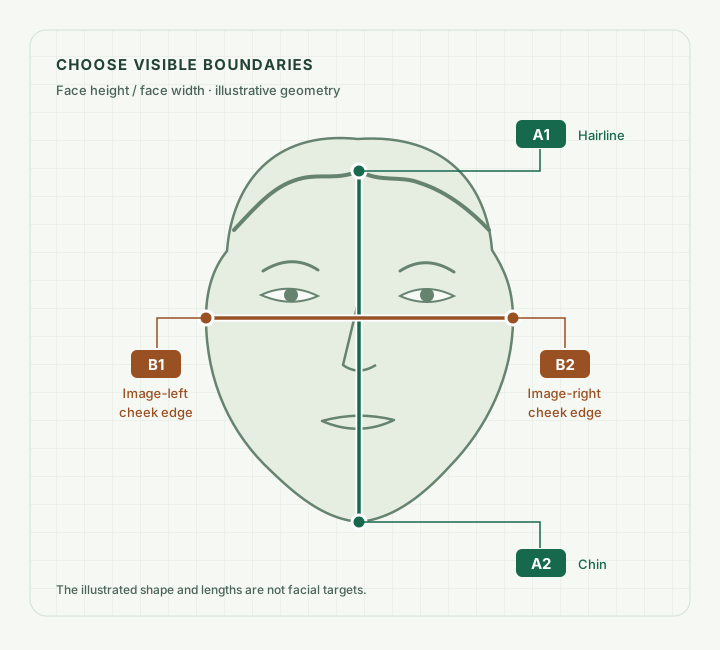
| Preset | Distance A | Distance B |
|---|---|---|
| Face height / face width | Visible upper hairline midpoint to bottom of chin. | Widest cheek outline on the image-left to the corresponding image-right outline. |
| Eye spacing / face width | Center of one visible iris to the center of the other iris. | The same cheek-to-cheek width definition. |
| Mouth width / nose width | Outer mouth corner to outer mouth corner, with the mouth relaxed and closed. | Outer edge of one nose wing to the outer edge of the other. |
| Custom distance A / distance B | Any two clearly identifiable endpoints. Give this distance a specific label. | Your chosen reference distance, with its own two endpoints and label. |
Skip the hairline-based preset if hair, a hat or the crop hides that boundary. Using the top of the image instead creates a different distance. A widow’s peak also needs a consistent choice recorded in your notes.
Hair and shadows can hide the outline. Choose a clearer photograph rather than guessing where the cheekbone is. Visible cheek width is not a direct measurement of the underlying skeleton.
Iris centers move with gaze. Look toward the lens and check that both centers are visible. Iris spacing is a different measurement from the gap between the inner eye corners.
It means A is 1.5 times as long as B in this image. The colon does not express a percentage or a score. If you reverse the measurements, you reverse the relationship: B / A becomes approximately 0.67 : 1.
180 ÷ 120 = 1.50 : 1
A is 50% longer than B. That comparison says nothing about whether either measurement should be changed.
Below 1: A is shorter than B. Exactly 1: the chosen image distances are equal. Above 1: A is longer than B.
Most ratios display to two decimals; very small or large values use scientific notation. The JSON preserves the computed value. A displayed 1.00 can still hide a small difference because of rounding. More decimal places describe the arithmetic more closely, without making your endpoint placement more accurate.
Try the coordinate editor before judging a hard-to-see facial edge. This exercise measures invented lines across the sample, not its anatomy.

| Point | x (%) | y (%) |
|---|---|---|
| A1 | 10 | 20 |
| A2 | 40 | 60 |
| B1 | 10 | 80 |
| B2 | 35 | 80 |
The number changes because you changed an endpoint. It does not mean the face changed. Choose Reset points before measuring actual features; changing the preset also clears the practice lines.
Each line uses the straight-line, or Euclidean, distance between its endpoints in the working image. Both the horizontal and vertical separation count. A slanted line is not measured only by its height or width.
Distance = √[(x₂ − x₁)² + (y₂ − y₁)²]
Proportion = distance A ÷ distance B
Here x and y are working-image pixel coordinates. The coordinate fields use percentages for convenient placement; the calculation converts them to pixels using the image’s width and height separately.
Why the image shape matters: in a 1,000 × 500-pixel image, 10% of the width is 100 px, while 10% of the height is 50 px. Dividing percentage differences directly would treat these unequal distances as equal. The studio converts both axes to the same pixel scale first.
Uniformly scaling an image changes both distances by the same factor, so that factor cancels in A / B. Stretching only the width or height can change the ratio. Preserve the image’s aspect ratio when editing.
The studio reduces large files to a working image with a longest side of at most 1,600 pixels. It reports that image’s dimensions and pixel lengths; integer pixel rounding may introduce a tiny resizing difference.
A ratio has no unit when both distances use the same unit. That is why this tool can compare pixels within one image without a ruler. It does not turn those pixels into the physical size of your face.
Real-world calibration needs more than knowing a file’s resolution. Camera geometry and the depth of the chosen features still matter. For lengths you already measured in the same unit, use the golden ratio calculator. It accepts numbers directly and also has its own photo mode.
If a line has coincident or effectively coincident endpoints, the tool withholds the ratio. Very short lines remain sensitive to small placement changes; magnifying the display does not add missing detail to the source photograph.
Repeat the placement on the same image before comparing different images. This checks one source of variation at a time.
Three placements give a small personal check, not a validated error estimate. Reusing the same photograph cannot test perspective distortion, and consistent placement can still be consistently off the intended boundary.
Suppose A is 180 px and B is 120 px. The ratio is 1.50. For illustration, assume each line length could be 3 px smaller or larger: A could be 177–183 px, and B could be 117–123 px.
Those are assumed bounds on the two lengths, not measured uncertainty for your face, not a confidence interval and not an additional calculator output. The example shows why a displayed difference of 0.01 deserves context.
| What changed? | Why the ratio can move | What to keep consistent |
|---|---|---|
| Camera distance | Nearer features and farther contours do not change apparent size equally. | Use a straight-on portrait taken farther back than a close selfie; record a repeatable distance. |
| Head turn or pitch | Depth becomes projected width or height differently as the head rotates. | Look toward the lens at eye level, without lifting or lowering the chin. |
| Expression or gaze | Mouth corners, nose wings and iris centers can move. | Relax the lips and look toward the camera. |
| Editing or visibility | Shape filters, stretching, hair and strong shadows can alter or hide endpoints. | Use an original image with even light and visible boundaries. |
Ward and colleagues’ 2018 projection model showed that short camera distance can enlarge apparent nasal breadth relative to cheek width. It is evidence that perspective affects ratios, not a formula to correct every selfie. Read the guide to selfie distortion for more context.
A controlled 2022 photogrammetry study by Lim and colleagues found poor agreement with direct measurements for cheek width, jaw width and head width. Even marked bony landmarks could be difficult to view from the front. Its capture and measurement protocol differs from this studio; the study does not establish an accuracy percentage for your photograph.
A bare “1.50” loses the information that makes it useful. The JSON records the preset, your custom A and B labels when used, both pixel lengths, the full computed ratio, four point definitions and coordinates, original and working-image dimensions, sample status, export time and method name. It includes the optional φ comparison only when selected. It contains no photograph or original filename.
The file does not know the camera distance, your expression or why you chose a particular boundary. Keep those notes alongside it. For a hidden hairline, record that you chose a different custom reference rather than calling it the same measurement.
Reset points keeps the photo and clears the four selections. Clear photo removes the photo and points from the page. Editing a measurement withdraws the prepared JSON link so you can prepare a fresh record. A file you already saved remains in your downloads.
A JSON record documents your inputs and arithmetic. It cannot show that a later difference came from physical change.
No. You choose every endpoint manually. Presets supply definitions, not detected points. This keeps the chosen hairline and outline visible for you to inspect. The main symmetry checker uses automatic landmarks for a different task.
This tool has no validated “good” range. The answer would also depend on the exact height and width definitions. A ratio describes the two distances you selected; it does not grade your appearance or supply a treatment target.
Yes, with Custom distance A / distance B, provided you define both lines first. “Midface ratio” is used for different measurements online. Give the export specific labels such as “iris-center spacing” and your exact vertical endpoints rather than assuming the name identifies a shared method. For three vertical sections, use the facial thirds calculator.
They may use different endpoints, automated estimates, projected axes, image crops or ratio direction. Compare the written definitions and the marked photo before comparing the numbers. A full-face height / width ratio and an upper-face width / height ratio are different measurements.
A pure left-to-right image reflection preserves straight-line distances. With exactly corresponding endpoints, A / B stays the same. Replacing one half of the face with a mirrored half, stretching the image or selecting different points changes the experiment.
A difference between photos cannot by itself establish physical change. Distance, pose, expression and endpoint placement may all differ. Keep a record of those conditions and use the same definitions. This calculator cannot assess treatment outcomes or diagnose a condition.
The proportion studio reads and processes the selected photo in your browser. It does not upload the photo or automatically save it. Download measurement JSON prepares a numeric record that you can choose to save; it contains image dimensions, labels, measurements and coordinates, with no photograph or original filename. Clear photo removes the current photo and selections from the page, but cannot delete a file you already downloaded. See the privacy policy for wider site data practices.
Yes. After choosing a photo, focus the photo canvas with the keyboard. Arrow keys move the crosshair by 1% of the relevant image dimension; Shift plus an arrow moves it by 5%. Enter or Space places the selected point. For finer placement, open Enter exact point coordinates and edit the x and y percentages.
Sources and tool behavior reviewed · Published by Face Symmetry Checker. The external studies explain the measurement context; none validates this website. The sample exercise and diagrams are teaching examples, with no participants or clinical findings implied. Read our manual measurement definitions and editorial policy.